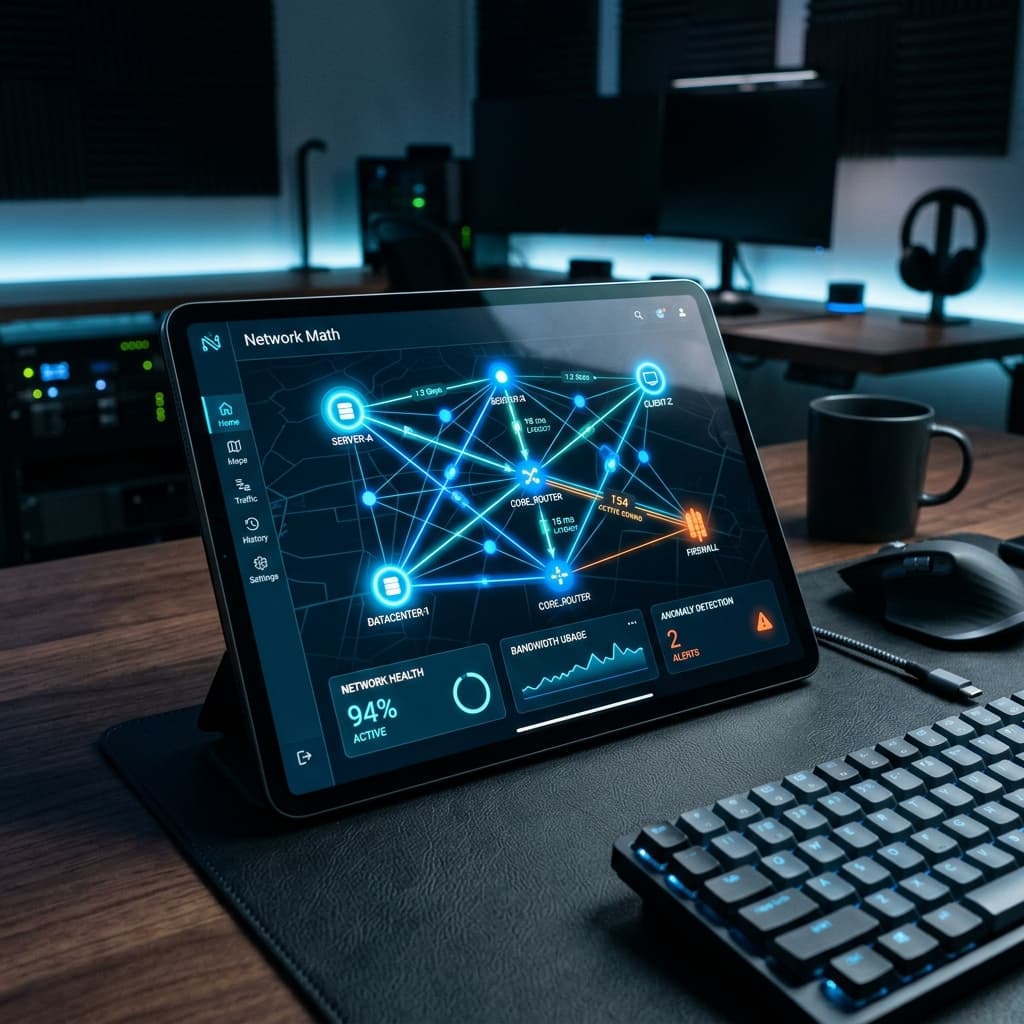
"Is someone using my Wi-Fi?" "Why is the internet so slow tonight?" "Is the printer even on the network?" These are some of the most common tech questions in any home or small office, and answering them usually means logging into a router page nobody remembers the password for. Network Math puts the answers on your phone: a network scanner, a proper speed test and a set of diagnostic tools, wrapped in a clean, friendly interface.
In this article
Local Network Scan: who's connected right now
Connect your phone to the Wi-Fi you want to check and tap Local Network Scan. Network Math sweeps your network and lists every device it can find — your router, phones, laptops, smart TVs, printers, cameras, game consoles and smart-home gadgets.
- IP address of every device, plus its MAC address where your phone is allowed to read it.
- Manufacturer lookup from the MAC address, so an unknown device becomes "Samsung", "TP-Link" or "Apple".
- Device type — router, phone, laptop, printer and so on — inferred from what the device is running.
- Open ports and services such as web, file sharing, AirPlay, Chromecast, Plex, printers and cameras.
- Device discovery via mDNS and UPnP on Android, which helps identify smart-home and media devices by name.
Per-device details, nicknames and history
Tap any device to see everything Network Math knows about it, copy its details, and ping it to check whether it's online. Latency statistics (minimum, average and maximum) build up as you ping, so you can see whether a device's connection is steady or flaky.
Give devices friendly names like "Ali's laptop" or "Living room TV" — they're remembered between scans. A history timeline records when devices join and leave your network, which is surprisingly useful for spotting a neighbour who knows your password.
Speed Test: download, upload, latency and jitter
The built-in speed test measures the four numbers that matter: download speed, upload speed, latency (ping) and jitter — how much your ping jumps around, which is what makes video calls stutter and online games lag.
Every result is saved to a history list so you can compare the evening slowdown with the morning, or show your internet provider a week of evidence. You can share results in a tap.
Network Info: your connection at a glance
- This device — connection status, network type, local IP address and subnet.
- Internet / WAN — your public IP address, reverse DNS, your ISP and its ASN, plus the city and country your connection appears to come from.
- Tap to copy any value — handy when support asks "what's your IP address?"
Diagnostics: DNS, port check and ping
For the moments when something just won't connect, the Diagnostics screen gives you three classic tools without needing a laptop:
- DNS Lookup — check that a domain name resolves, and to what.
- Port Check — test whether a port is open on any host, with one-tap presets for HTTP, HTTPS, SSH, SMB, FTP, MQTT, Home Assistant and Plex.
- Ping — send repeated pings and watch sent, online, min, average and max figures update live.
For tinkerers: ESP32 companion scanning
Network Math can also pair over Bluetooth with an ESP32 microcontroller running our scanner firmware. With it, the ESP32 can join a Wi-Fi network and run a deep ARP scan, or passively listen for nearby Wi-Fi devices and estimate how far away they are from signal strength. It's an optional extra for hobbyists — everything above works with just your phone.
Use it responsibly
Network Math is built for checking networks you own or manage — your home Wi-Fi, your office, your own lab. Please only scan networks you have permission to scan. Our privacy policy explains what the app does and doesn't collect.
Quick start
- 1Install Network Math from Google Play.
- 2Connect your phone to the Wi-Fi network you want to check.
- 3Open Local Network Scan and let it finish.
- 4Nickname the devices you recognise, then run a Speed Test to set a baseline.
Frequently asked questions
Can Network Math tell me if someone is stealing my Wi-Fi?
+
It shows every device it can find on your network, with manufacturer and device type where available. Nickname the devices you recognise — anything left over is worth investigating, and changing your Wi-Fi password will remove unwanted guests.
Why can't I see MAC addresses on some phones?
+
Some operating systems — iOS in particular — don't allow apps to read other devices' MAC addresses. On Android, Network Math can show them for devices your phone can see on the network.
What does jitter mean in the speed test?
+
Jitter is how much your latency varies from one moment to the next. Low jitter means a stable connection; high jitter causes choppy video calls and lag in online games, even when download speed looks fine.
Do I need special hardware?
+
No. Network scanning, speed tests, network info and diagnostics all work with just your phone. The ESP32 features are an optional extra for hobbyists.
Is Network Math free?
+
Yes. Network Math is free to download on Android. It is supported by ads.